









Share the form
A form reaches people through its links. Each link is one way in: a QR code on a poster, a kiosk on the stand’s laptop, a shortcode in a page of your shop or an embed on another website. Make one link per place or medium, and the statistics tell you which one brought the most sign-ups.
Links
A link has a name, a channel and a language, and the module gives it a code of eight characters. The name is stored with every sign-up that comes through the link, and kept there even if you rename or delete the link later. Good names say where the link is used: “Stand B12 – poster QR”, “Stand B12 – laptop”, “Flyer hall 2”, “Blog article”.
- One link always opens the form in one language. For visitors who speak different languages, make one link, and one poster, per language.
- The address of a link is short and never changes, such as
https://www.example.com/scansign/K7M2P9XW(depending on the languages of your shop, a language code can follow the domain). Codes are not case-sensitive and a deleted code is never given to another link. - The UTM values a link records come from the form’s Tracking page, and each link can override them (Tracking with UTM values).
Make a link
- Open the form’s Share page and open New link under the list (it is open while the form has no link).
- Enter a Name of up to 128 characters.
- Choose the Channel: QR code, Kiosk, Shortcode or Embed.
- With several shop languages, choose the Language of the form this link opens.
- For a kiosk, choose an optional QR code in the kiosk corner: an active QR code link of the same form, shown in a corner of the kiosk for people who prefer their phone.
- Click Create the link. Its card appears in the list, with its QR code, poster, address, shortcode and embed code.
Every link has all of them, whatever its channel: the channel says how you mean to use it, and the statistics group the sign-ups by it. A kiosk link opens the kiosk page; the other channels open the normal form page.
The card of a link
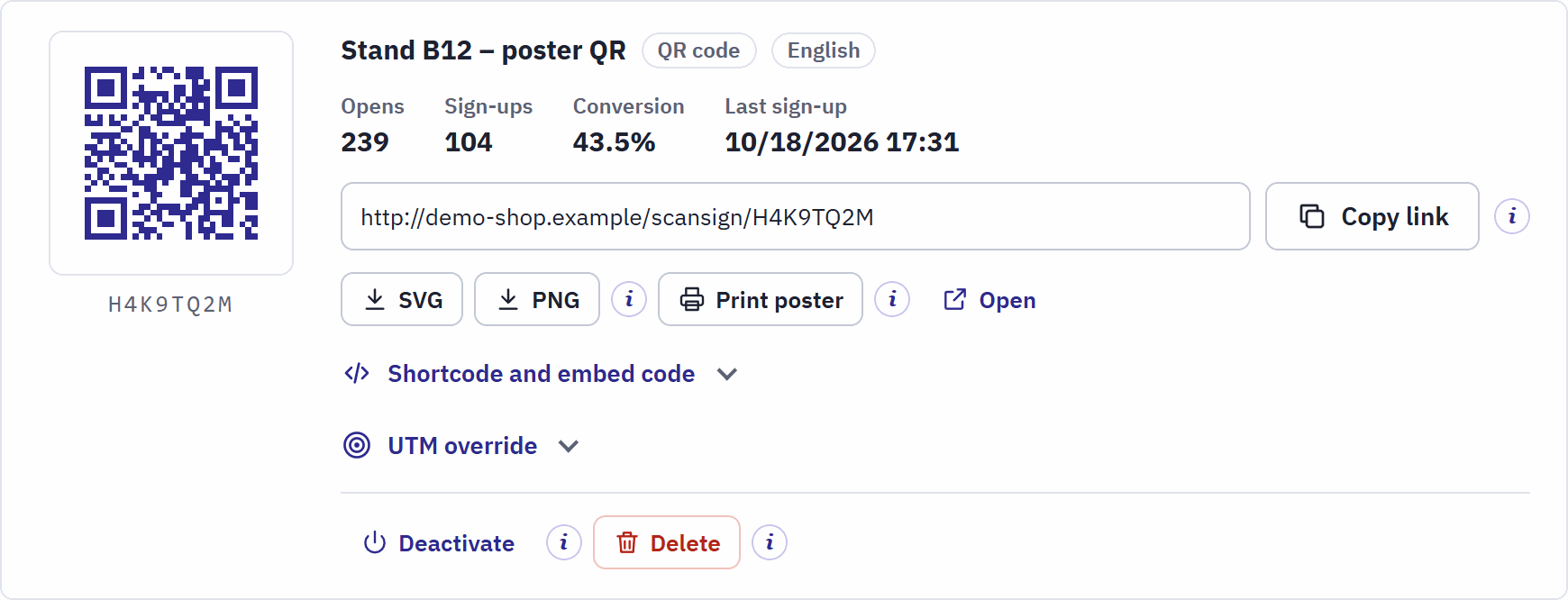
- The QR code and the code of the link.
- The name, the channel and the language.
- Opens, Sign-ups, Conversion and Last sign-up of this link.
- The address of the form page and Copy link.
- SVG and PNG download the QR code, Print poster opens the poster, Open opens the form page.
- Shortcode and embed code (Shortcode and widget in your shop).
- UTM override (A link with its own values).
- Deactivate and Delete.
Copy link puts the address on the clipboard, for an email, a message or a social media post. Use a separate link per medium to compare them later.
QR code and poster
SVG downloads the QR code as a drawing that stays sharp at any size: send it to your print shop or put it into your own flyer. PNG downloads a picture of 1024 pixels for documents and social media. The code uses the colours of the form (Where the design shows) and holds only the short address of the link: the UTM values are never put into it, so it stays small and easy to scan.
Print poster opens a page ready to print, in the language of the link:

- Your logo, or the name of the shop.
- The title of the form.
- “Scan to sign up”, in the language of the link.
- The QR code.
- The short address, for people who type it.
- Choose the size next to Paper size: A4 or A5.
- Click Print. The button bar is not printed.
- In the print window of your browser, keep the scale at 100% and switch off the browser’s headers and footers.
The form on a phone
A QR code, a copied link and Open lead to the form page: a light page of its own, made for phones, without your theme, without cookies and without trackers. It shows your logo or shop name, the form, and a link to your privacy policy when you chose one (Thank you).

- Your logo, a link back to your shop.
- The title and the introduction.
- A field. A
*marks a required one. - The privacy consent checkbox.
- The send button.

- The page needs JavaScript; without it, it says so. When it opens, the form is made ready for that visitor (that is one open), so a page left open for a day or served from a cache still works.
- The visitor’s answers are checked before sending. A wrong answer is shown in red under its field.
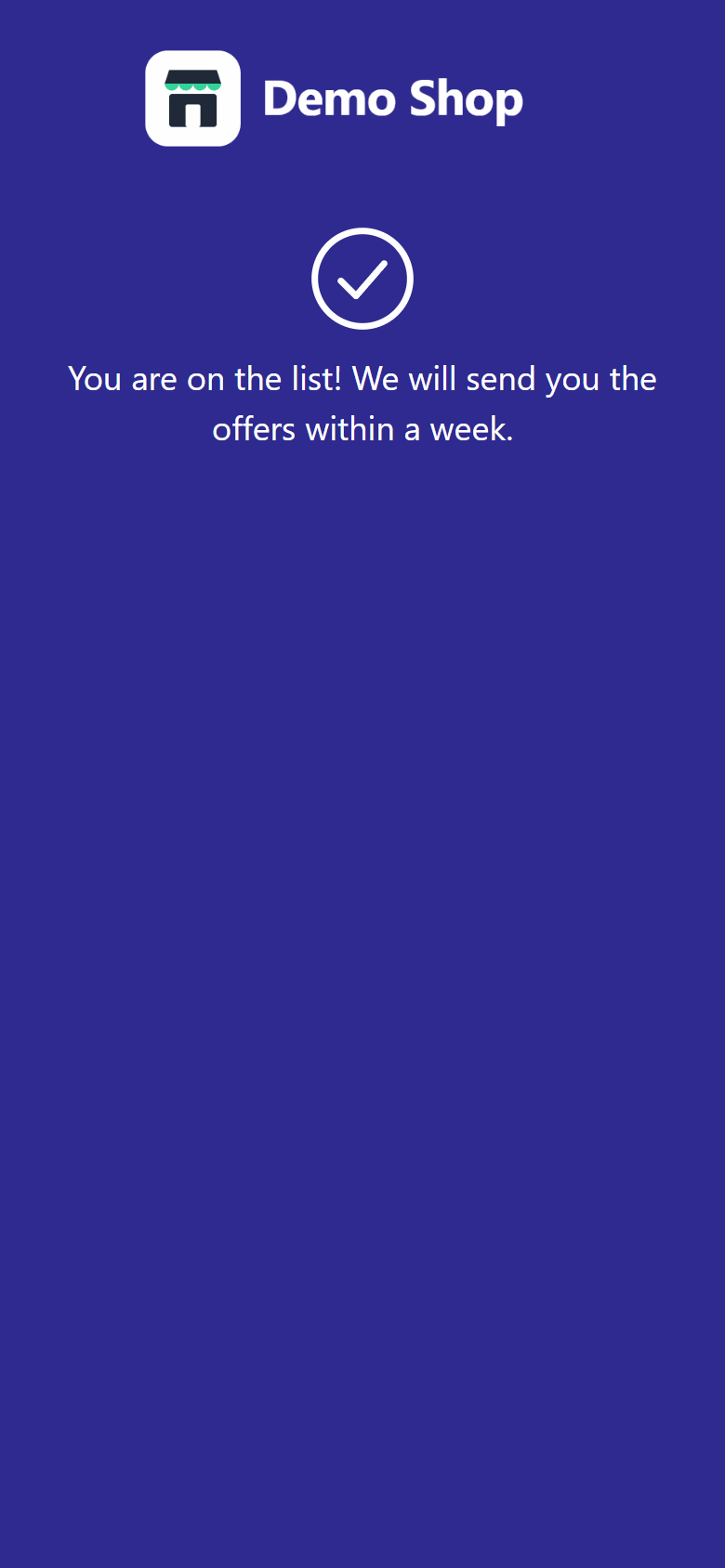
- After sending, the page shows the thank-you message or opens the page you chose (Thank you). With the duplicate check on, a second sign-up with the same email address within 24 hours is thanked with “You are already signed up — thank you!” and not stored again.
- Search engines are told not to list the page.
The kiosk on the stand
A kiosk link turns a laptop or tablet on the stand into a sign-up terminal that runs all day.

- The logo. Five taps on it, within three seconds, ask for the kiosk PIN.
- The QR code in the kiosk corner, with “or scan to fill it on your phone”.
- Make a link with the channel Kiosk, if you like with a QR code in the kiosk corner.
- In Settings › General, set a Kiosk PIN of 4 to 8 digits (General).
- On the stand’s device, open the kiosk link (copy it, or click Open on its card), and tap the screen once: the kiosk asks the browser for the full screen and keeps the screen from going dark.
The kiosk has no links that lead away and no zoom. After a sign-up it shows the thank-you message:

- “Thank you!” and the form’s thank-you message.
- Next person shows a blank form at once.
- Otherwise a blank form opens by itself after the seconds of Kiosk reset (Thank you).
- Leaving the kiosk: five taps on the logo within three seconds open a PIN prompt; the right PIN leaves to your shop’s home page. After five wrong PINs within 10 minutes, the kiosk refuses more tries for a few minutes. Without a kiosk PIN, the kiosk can only be left by closing the browser or its tab.
- A kiosk always shows the thank-you message, even when the form opens another page after sending.
- The limit of sign-ups per device does not apply to kiosk links: one device serves a queue of people (General).
- The kiosk needs the internet. If the connection drops, the form says that it could not be sent and keeps the answers, so the person can send it again.
Shortcode and widget in your shop
The shortcode shows the form inside a page of your own shop: a CMS page, a product or category description, or a blog post.
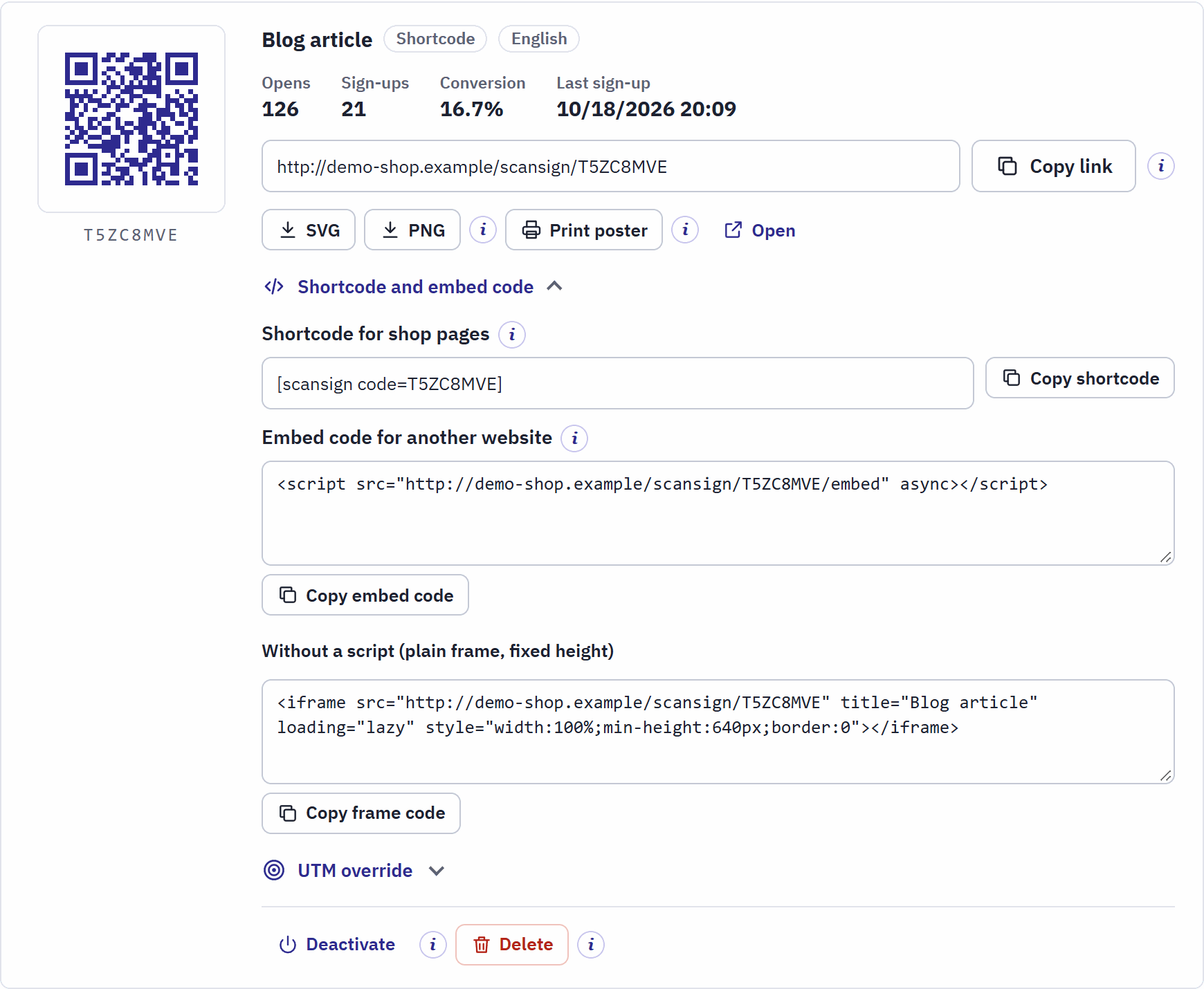
- Shortcode for shop pages and Copy shortcode.
- Embed code for another website: one script line.
- Copy embed code.
- Without a script (plain frame, fixed height), with Copy frame code.
- On the card of the link (best a link with the channel Shortcode, named after the page), open Shortcode and embed code and click Copy shortcode. It looks like
. - Paste it on a line of its own into the text of the page, for example in Design › Pages for a CMS page, and save the page.
- Open the page in your shop: the form is where the shortcode was.

- The form block, in the colours of the form, inside the theme’s page.
- The shortcode works in any text your shop prints, also inside the paragraph the editor puts around it. An unknown, switched-off or deleted code shows nothing, so a page never breaks.
- A block counts one open when the visitor scrolls it into view, not when the page loads, and pages served from a cache still work.
- When the page was opened with UTM values in its address (for example from your newsletter), the sign-up records those values (Visitors who bring their own values).
- Theme developers can place the same block in a template with
{widget name='pchscansign' code='K7M2P9XW'}.
Embed on another website
The embed code shows the form on any other website: a partner’s site, a WordPress blog, a landing page. It is one script line that the other site pastes where the form should appear:
<script src="https://www.example.com/scansign/K7M2P9XW/embed" async></script>The script places the form page in a frame and adapts the frame’s height to the form, also when an error message or the thank-you message changes it. The sign-up goes straight to your shop. UTM values in the address of the host page are passed on to the sign-up.

- The embedded form, in its own frame and in its own colours.
For sites that do not accept scripts, Without a script (plain frame, fixed height) gives a plain <iframe> of at least 640 pixels in height, which does not adapt.
When the form opens another page after sending, the script opens that page in the visitor’s window, with the UTM values of the sign-up. With the plain frame, the page opens inside the frame.
Switch off or delete a link
- Deactivate stops a link: its page shows that the form is not available, its shortcode and its embed show nothing. Its sign-ups and statistics stay. Activate starts it again, for the next edition of the event. A switched-off link has the badge Switched off.
- Delete removes the link from this list and stops it at once, after a confirmation. Its sign-ups, digests and statistics keep its name. A deleted code is never given to another link, so an old poster can never lead to a new form.
- When the whole form is switched off, the Share page says so at the top: its links open the “not available” page until you switch the form on in the list of forms.