











After a sign-up
The After submit page of a form decides what happens when someone signs up: the thank-you message or another page, the emails, the newsletter, a customer account and the webhook to another system. Everything except the thank-you message is off until you switch it on.
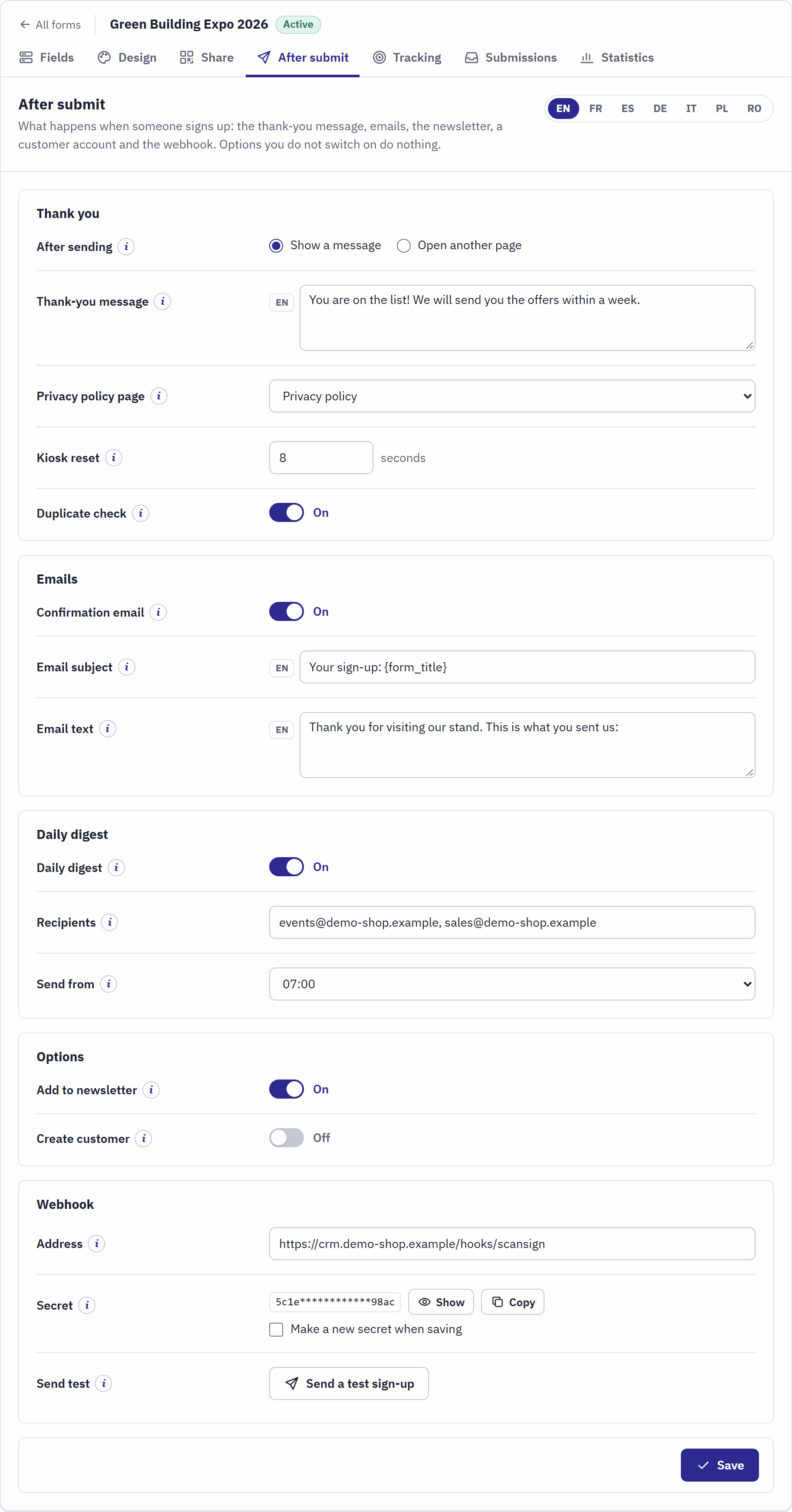
- The language tabs, for the thank-you message and the email texts.
- Thank you: what the visitor sees after sending, the privacy page, the kiosk reset and the duplicate check.
- Emails: the confirmation email to the visitor.
- Daily digest: the summary email to your team (The daily digest).
- Options: the newsletter and the customer account.
- Webhook: the sign-ups sent to another system.
One Save button at the bottom stores the whole page. The visitor gets the answer first; the emails, the options and the webhook run right after it, each on its own. If one of them fails, the visitor never sees an error: the failure is written to Advanced Parameters › Logs in a line that starts with pchscansign.
Thank you
| Setting | What it does |
|---|---|
| After sending | Show a message replaces the form with the thank-you message. Open another page opens the address you enter, for example a page with a discount code. A kiosk always shows the message. |
| Thank-you message | The text shown after a successful sign-up, per language. Tell people what happens next, for example “We will call you within two days.” |
| Page to open | The full address, starting with https://. The UTM values of the sign-up are added to it, so that your analytics count the visit for the event (Tracking with UTM values). |
| Privacy policy page | A CMS page of your shop, linked under the form (None by default). The kiosk opens it in a window over the form. Choose your privacy policy whenever the form asks for personal data. |
| Kiosk reset | How many seconds the kiosk shows the thank-you message before a blank form, from 3 to 120. 8 seconds after installation. |
| Duplicate check | A second sign-up with the same email address within 24 hours is thanked but not stored again, and not counted again. On for new forms (General); switch it off when one person may sign up several people with the same address. It needs a field used as the email address. |
The confirmation email
The visitor can get a copy of the answers right after signing up. Switch on Confirmation email in the Emails card; it needs a field used as Email address of the person.
| Setting | What it does |
|---|---|
| Email subject | The subject, per language. {form_title} becomes the title of the form. After installation: “Your sign-up: {form_title}”. |
| Email text | The text above the answers, per language: the next steps, the date of an event, a contact. After installation: “Thank you for signing up. Here is a copy of your answers.” |
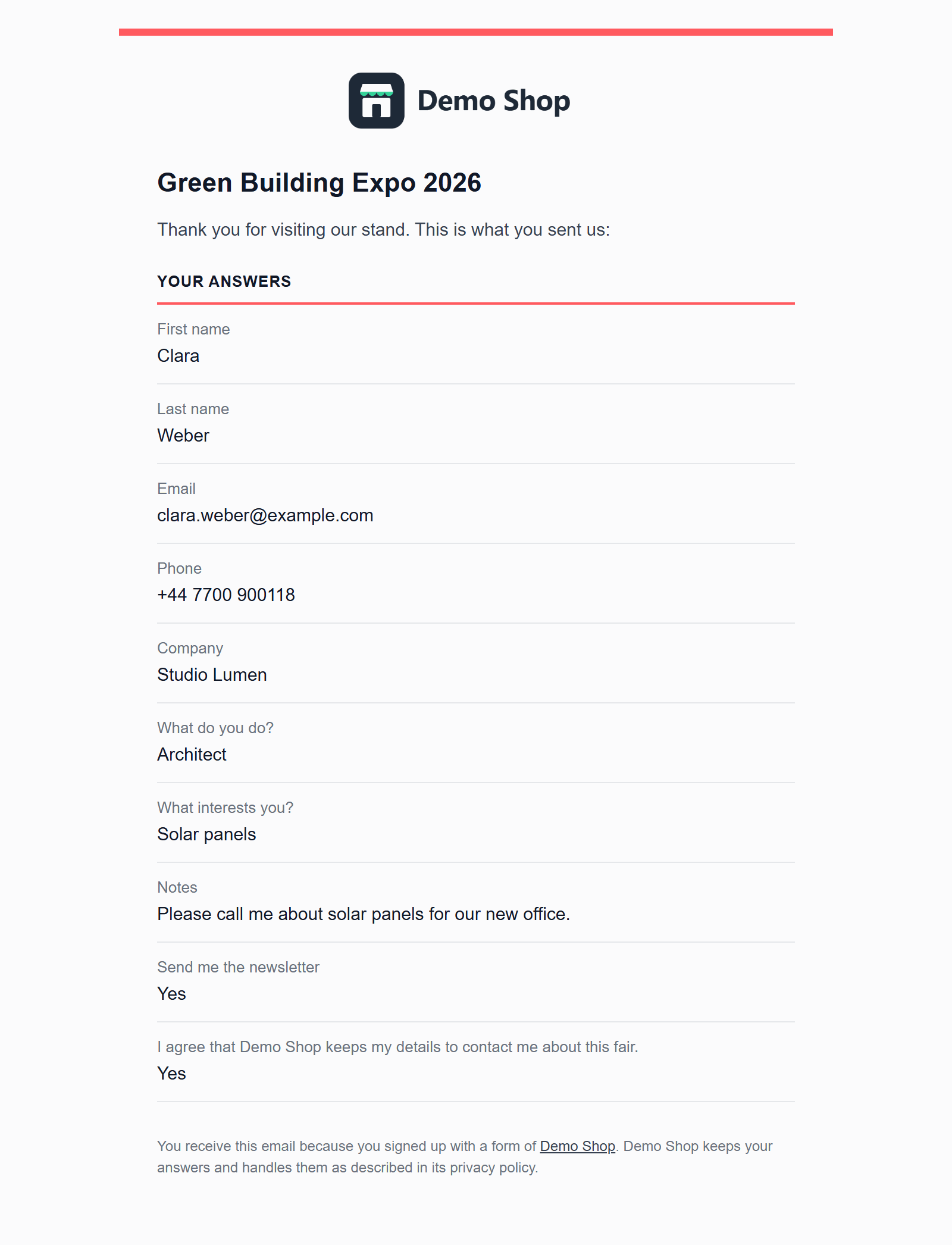
The email has your shop’s logo and name, the title of the form, your text, the answers with the questions as they were asked, the button colour of the form as its accent, and a line that says why the person receives it. It is written in the language of the link the person used, and it leaves through your shop’s email settings.
Add to the newsletter
Add to newsletter subscribes the people who tick the newsletter consent box. It needs an email field and a checkbox used as Newsletter consent. For each sign-up with the box ticked:
- If a customer of the shop has that email address, the customer account is subscribed to the newsletter.
- Otherwise the address is added to the subscribers of PrestaShop’s Newsletter subscription module (
ps_emailsubscription), when that module is installed and active.
Create a customer account
Create customer makes a customer account for people who have none. It needs fields used as email address, first name and last name.
- When no registered customer of the shop has the email address, the module creates an active account in the shop’s default customer group, with the first and last name, and subscribed to the newsletter when the newsletter consent box was ticked.
- The account gets a random password nobody knows, and the person receives an email “Your account at …” with a link to choose a password. When the link has expired, the person uses “Forgot your password?” on the sign-in page.
- An existing customer is left as it is. A name that PrestaShop does not accept as a customer name (digits, for example) creates no account.
Webhook
A webhook sends every sign-up to another system as it arrives: a CRM, Zapier, Make, n8n or your own script.
- In the Webhook card, enter the Address the receiving system gave you. It must start with
https://: the data is personal, so unencrypted addresses are refused. - Click Save. A Secret is made with the first address. Show and Copy it, and enter it in the receiving system so that it can check the signature.
- Click Send a test sign-up. The module sends a sample sign-up of this form, with its current fields and made-up values, and shows the HTTP status the receiving system answered.
After each sign-up the module posts one JSON document to the address and waits at most five seconds for the answer. A status from 200 to 299 counts as delivered. A redirect is not followed (enter the final address), and addresses inside private networks are refused. A failed delivery is not tried again; the card shows Last answer, Last failure and Failures in a row, and the checklist warns about failures of the last seven days. Make a new secret when saving replaces the secret, if it was shared by mistake: then update the receiving system too.
The document looks like this (the fields are those of your form):
{
  "module": "pchscansign",
  "version": "1.0.0",
  "form": {"id": 1, "title": "Green Building Expo 2026"},
  "link": {"code": "K7M2P9XW", "name": "Stand B12 - poster QR", "channel": "qr"},
  "lang": "en",
  "submitted_at": "2026-10-23T11:42:05+02:00",
  "fields": [
    {"id": 11, "label": "First name", "role": "firstname", "value": "Anna"},
    {"id": 13, "label": "Email", "role": "email", "value": "anna@example.com"},
    {"id": 16, "label": "What do you do?", "role": "none", "value": "Installer"},
    {"id": 19, "label": "Keep me informed by email", "role": "newsletter_consent", "value": "Yes"}
  ],
  "roles": {"email": "anna@example.com", "firstname": "Anna", "lastname": "Berg",
            "phone": "", "company": ""},
  "utm": {"source": "scansign", "medium": "qr", "campaign": "green-building-expo-2026"}
}valueis the answer as the person saw it: the label of the chosen choice for a dropdown, yes or no in the link’s language for a checkbox, the text for the other types.rolesrepeats the answers of the fields used as email, first name, last name, phone and company, so that the receiving system does not depend on your questions.submitted_atis the time of the sign-up in the shop’s time zone.
Check the signature
Each request carries the header X-ScanSign-Signature: sha256= followed by the HMAC-SHA256 of the raw body, computed with the secret, in hexadecimal. The header X-ScanSign-Event is signup for a real sign-up and test for Send a test sign-up. The receiving system computes the same value from the body it received and refuses the request when they differ. In PHP:
$body = file_get_contents('php://input');
$expected = 'sha256=' . hash_hmac('sha256', $body, $secret);
$given = isset($_SERVER['HTTP_X_SCANSIGN_SIGNATURE']) ? $_SERVER['HTTP_X_SCANSIGN_SIGNATURE'] : '';
if (!hash_equals($expected, $given)) {
    http_response_code(401); // not from your shop
    exit;
}
$signup = json_decode($body, true);
In Node.js, with the raw body as a Buffer:
const crypto = require('crypto');
const expected = 'sha256=' + crypto.createHmac('sha256', secret).update(rawBody).digest('hex');
const given = req.get('X-ScanSign-Signature') || '';
const valid = given.length === expected.length
  && crypto.timingSafeEqual(Buffer.from(given), Buffer.from(expected));
Compute the signature over the body exactly as received, before any JSON parsing: a body that was parsed and written again no longer matches.
The daily digest
The people who call the leads back do not need an email per sign-up. The daily digest sends them one email per day instead: how many people signed up the day before, through which link, what they answered, and a link to the list.
Switch it on
- Open the form’s After submit page.
- In the Daily digest card, switch on Daily digest.
- Enter the Recipients, separated by commas, for example
sales@example.com, anna@example.com. - Choose Send from: the hour of the shop’s time zone from which the digest may leave (8:00 after installation).
- Click Save. A wrong address is refused with its name.
Each form has its own digest, its own recipients and its own hour.
What the digest contains
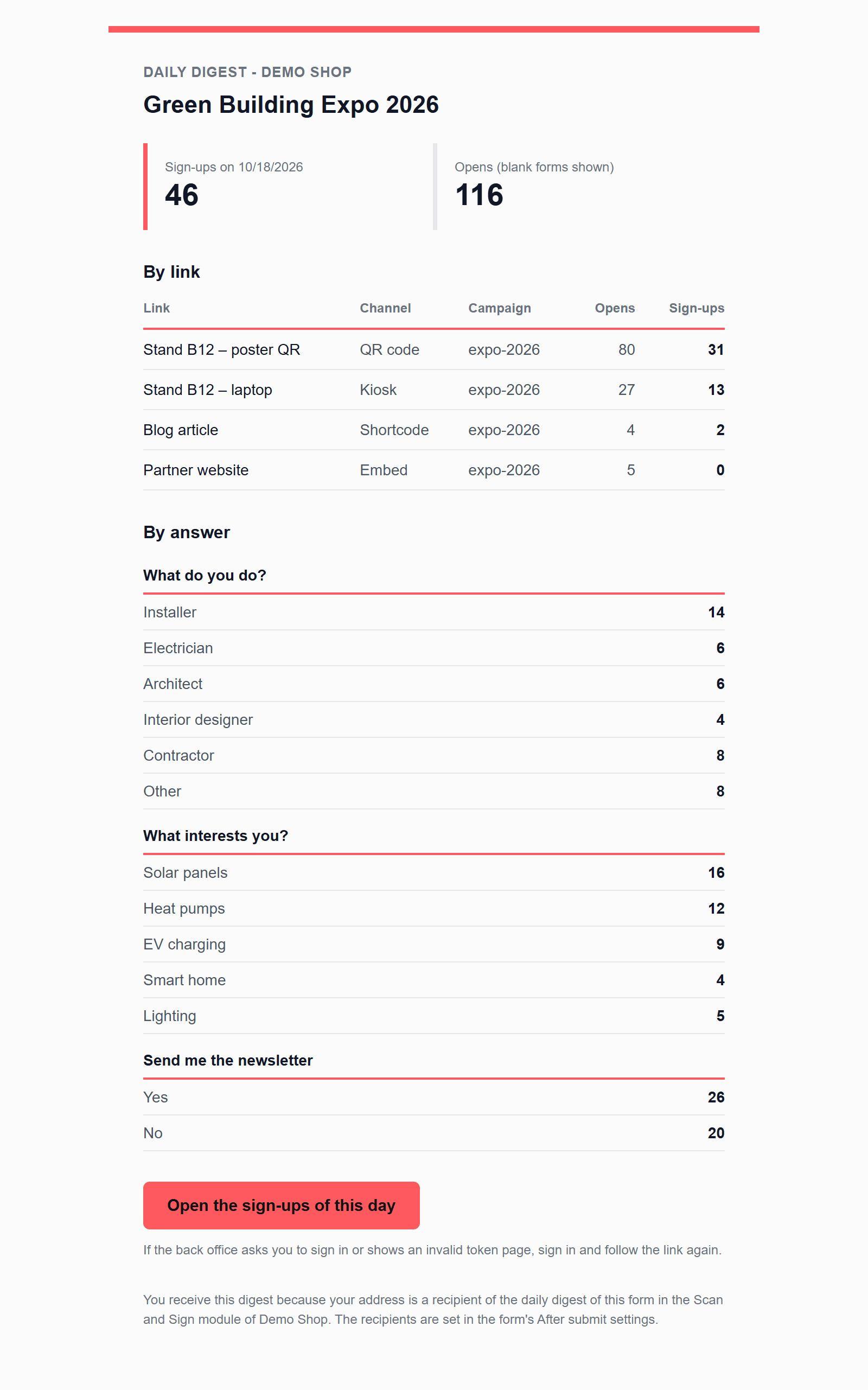
- The form, the day, the number of sign-ups and the number of opens.
- By link: each link with its channel, campaign, opens and sign-ups. A deleted link keeps its name, with “(deleted)”.
- By answer: the counts of every dropdown and checkbox question.
- Open the sign-ups of this day: a link to the Submissions page of the form, filtered on that day. If the back office asks you to sign in, or shows its page about an invalid token, sign in or confirm, and the list opens.
The digest is written in the default language of the shop. It is sent only for a day that had sign-ups: a quiet day sends nothing.
When it leaves
The digest of a day leaves the next day, from the hour of Send from, at the first of these moments:
- Someone uses the back office. The module checks at most every 15 minutes, while employees work. This needs no setup, but on a day when nobody opens the back office, the digest waits.
- The cron address is called. With a cron job every 15 minutes, the digest leaves at the hour you chose (Scheduled tasks).
A digest is never sent from a visitor’s page, so a sign-up is never slowed down by an email. When days were missed, for example over a weekend without the back office, the next run sends the digest of each missed day that had sign-ups, one email per day and at most seven days in one run. A digest that was sent is not sent again, also with Run now.
The status line shows when the last digest ran, and the checklist warns when digests are due but none ran in 36 hours (The checklist).