










What Scan and Sign does
At a fair, a workshop or an open day, the names of interested visitors usually end up on a paper sheet or in a spreadsheet on the stand’s laptop. Days later somebody types them in again, half of them are hard to read, and nobody knows any more which event brought whom. Scan and Sign puts a short sign-up form into your PrestaShop shop instead, and every sign-up arrives there at once, with the event it came from.
From the paper sheet to your shop
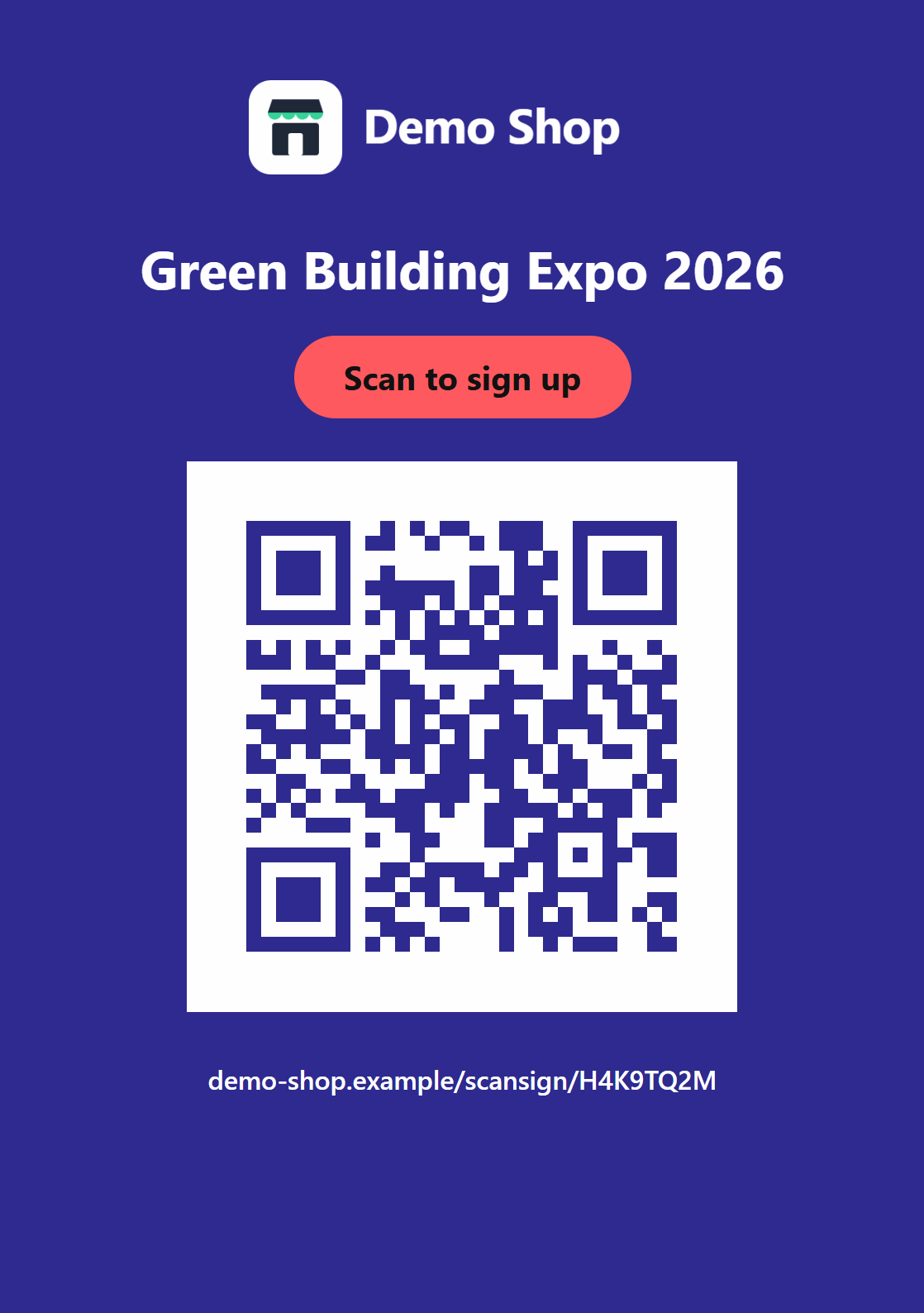
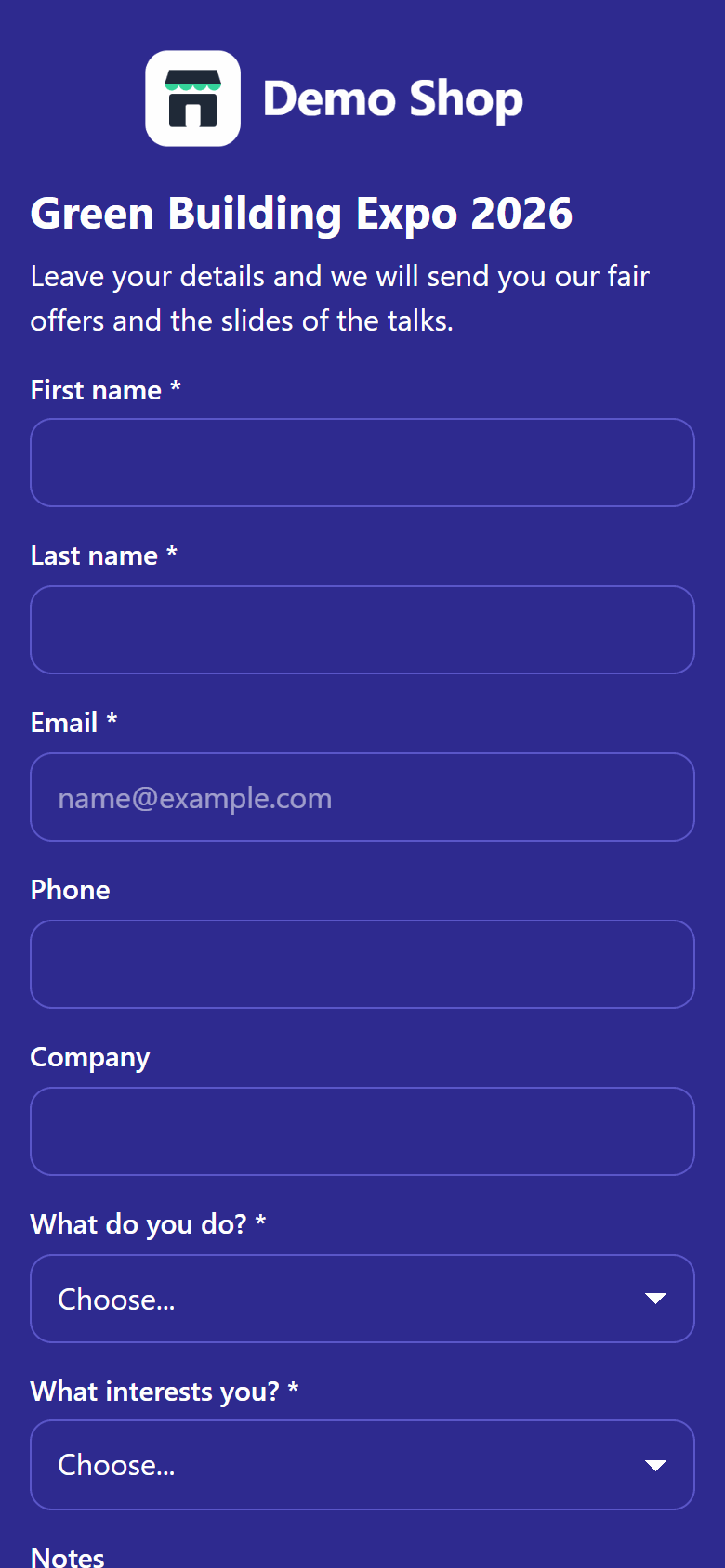
You build a form with the questions you need, print its QR code on a poster and put the poster on your stand. Visitors scan the code with their phone and sign up in a few seconds. The laptop on the stand can show the same form as a kiosk that clears itself after every visitor.
1Poster
The poster with the QR code hangs at the stand.
2Phone
The visitor scans it and fills in the form on a light page made for phones.
3Shop
The sign-up is stored in your shop with the link it came from.
✓Team
The next morning your team gets one summary email of the day.
One form, four ways in
Every form can be opened in four ways. Each way is a link that you make on the form’s Share page, with its own name, such as “Stand B12 – poster”. The module stores that name with every sign-up, so you always know where a sign-up came from.
| Channel | Where | What the visitor sees |
|---|---|---|
| QR code | A poster, a flyer, a roll-up, a table card | A short address that opens a light page made for phones, without cookies. The module makes the QR code (SVG or PNG) and a poster ready to print on A4 or A5. |
| Kiosk | The laptop or tablet on the stand | The same form on the whole screen. After each sign-up it thanks the person and shows a blank form for the next one. It keeps the screen awake, has no links that lead away, and can show a small QR code in a corner for people who prefer their own phone. |
| Shortcode | A page of your shop: a CMS page, a product or category description, a blog post | The form inside the page, in the form’s own colours. |
| Embed | Another website: a partner’s site, your blog, a landing page | The form in a frame that adapts its height. The sign-up still goes straight to your shop. |
What you get after the event
In the back office
- Submissions: every sign-up with its answers, filters by link, campaign, dates and email, and an export to Excel (Submissions and CSV export).
- Statistics: sign-ups and opens per day and per hour, per link and per answer (Statistics).
By email and in other tools
- A daily digest for your team: one email per day with sign-ups, never one email per sign-up (The daily digest).
- UTM source, medium and campaign on every sign-up, for your analytics (Tracking with UTM values).
- If you want them: a confirmation email to the visitor, the newsletter, a customer account, a webhook to your CRM (After a sign-up).
The form page sets no cookie, the visitor’s IP address is stored only as a hash, the text of the privacy checkbox is kept with each sign-up as proof of consent, and old sign-ups are deleted by themselves after a period you choose (Privacy, data and protection).
The words used in this guide and in the module
| Word | What it means |
|---|---|
| Form | The questions, texts, colours and options of one event or purpose. You can have as many forms as you like. |
| Field | One question of a form: a text line, an email address, a phone number, a dropdown, a long text, a checkbox or a hidden value. |
| Use as | What a field means for the module: the person’s email address, first name, last name, phone, company, privacy consent or newsletter consent. The options and emails rely on it. |
| Link | One way into a form: a QR code, a kiosk, a shortcode or an embed. Its name is stored with each sign-up. A form can have as many links as you need. |
| Channel | The kind of link: QR code, Kiosk, Shortcode or Embed. |
| Code | The eight characters that identify a link, such as K7M2P9XW. They are part of its address and of its shortcode, and never change. |
| Sign-up | One sent form: the answers, the link, the language, the time and the consent. |
| Open | A blank form shown to somebody: a page opened from a QR code, a kiosk ready for the next person, a shortcode block or an embed on screen. Opens are not visitors: the kiosk counts one open per person it serves. |
| Conversion | Sign-ups divided by opens. A dash means that there was no open yet. |
| Digest | The daily summary email to your team. |
How to read this guide
- Words in bold indigo are labels exactly as the back office shows them, for example the Save button. A path such as Customers › Scan and Sign means: open Customers in the menu, then Scan and Sign.
- Text in a grey box, such as
, is something you type or read exactly like that. - Numbered markers in a screenshot are explained in the list under it.
- The screenshots show a demo shop on PrestaShop 9.2 with three invented events. On PrestaShop 1.7.8 and 8 the pages of PrestaShop itself look slightly different; the module’s pages and labels are the same.
- To start quickly, read Install and first steps; it ends with a test before your first event.
- This guide exists in English, French, Spanish, German, Italian, Polish and Romanian, the languages of the module’s back office.