











Settings and scheduled tasks
Two pages hold what applies to every form of a shop: General, with how long sign-ups are kept, the kiosk PIN and the protection against floods of sign-ups, and Scheduled tasks, with the optional cron address that sends digests on time.
General
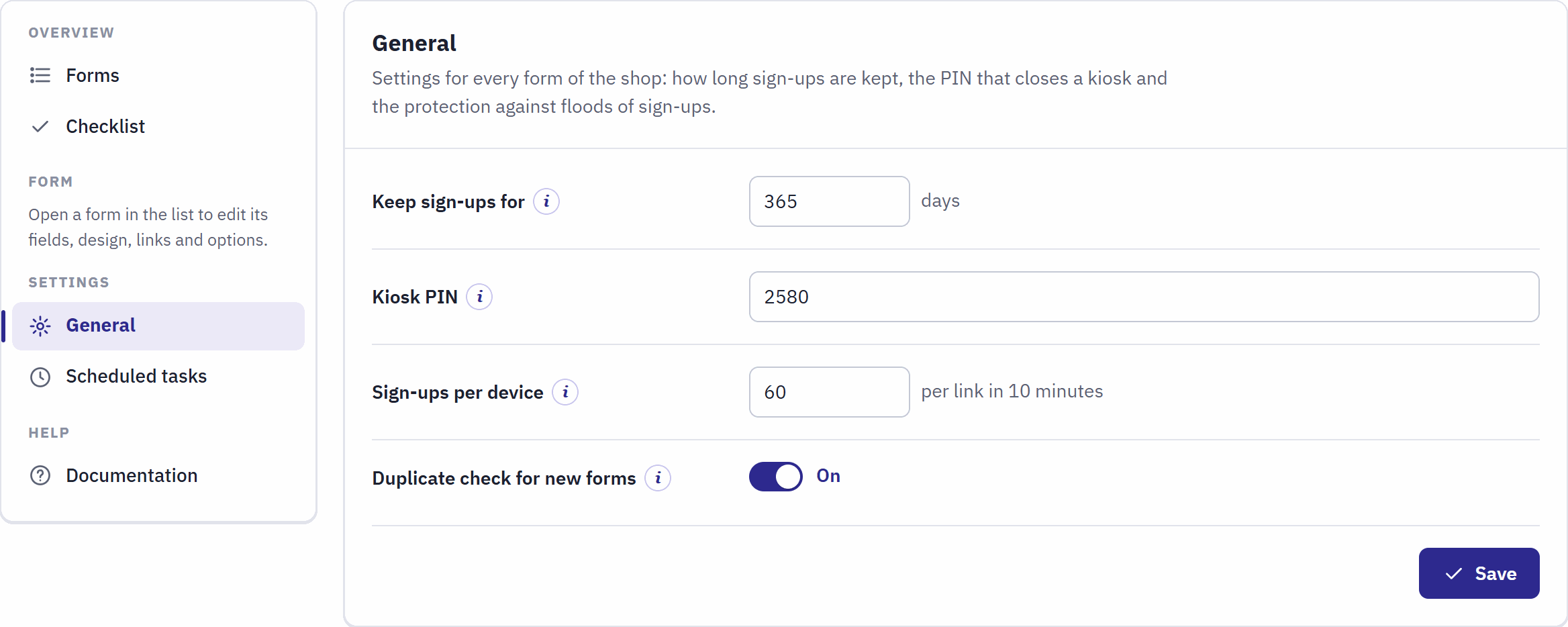
- Keep sign-ups for.
- Kiosk PIN.
- Sign-ups per device.
- Duplicate check for new forms.
| Setting | What it does | After installation |
|---|---|---|
| Keep sign-ups for | Sign-ups older than this many days are deleted by themselves, from 0 to 3650. 0 keeps them forever, and the checklist warns. The statistics stay (Old sign-ups are deleted). | 365 days |
| Kiosk PIN | 4 to 8 digits. Five taps on the logo of a kiosk ask for it; the right PIN leaves the kiosk. Five wrong tries within 10 minutes block further tries from that device for a few minutes. Choose digits visitors cannot guess. Empty: a kiosk can only be left by closing the browser. | empty |
| Sign-ups per device | The most sign-ups one internet address may send through one link in 10 minutes, from 1 to 10000. Above it, the visitor is asked to wait a few minutes. Kiosk links have no limit. | 60 |
| Duplicate check for new forms | Whether new forms start with the duplicate check on. Each form changes it on its After submit page (Thank you). | on |
With several shops, General is saved for the shop chosen in PrestaShop’s shop selector, for a shop group, or as the default of every shop in “All shops”, and only the settings you change are written (Several shops).
Scheduled tasks
Two tasks run by themselves: the daily digests and the deletion of old sign-ups. Without any setup they run while the back office is used, at most every 15 minutes; the deletion also runs, in small portions, when visitors open forms. A cron job that calls the module’s cron address makes them run on time, also on days when nobody opens the back office.

- Cron URL and Copy.
- An example line for the cron settings of a hosting panel, every 15 minutes.
- Last tick, Last digest run and Last clean-up, with the result of the last run under them.
- Run now runs the digest and the clean-up of this shop at once.
- New cron token makes a new secret part of the address; the old address stops working.
- Click Copy next to the Cron URL.
- In your hosting panel, add a cron job that opens this address every 15 minutes, as in the example line:
*/15 * * * * curl -s "https://…/scansign/cron?token=…". A web cron service works too. - Click Run now to test: the result shows under the button, and Last digest run and Last clean-up get the time.
- The address holds a secret token: keep it out of public places. If it was shared by mistake, click New cron token and update the cron job.
- Only an employee who may edit the module sees the address.
- A run through the cron address deletes all the old sign-ups that are due; a run from the back office or a visitor’s page deletes up to 2,000 at a time and continues at the next run.
- Run now never sends a digest twice: the digests already sent are skipped.
- When a run fails, the result line says so, and the error is written to Advanced Parameters › Logs.
- With several shops, the page has one block per shop, each with its own address and token (Several shops).
Privacy, data and protection
A sign-up form collects personal data, often from people who meet your brand for the first time. Scan and Sign stores what you ask and little else, keeps a proof of consent, deletes old sign-ups by itself and keeps robots out without a captcha.
A form page without cookies
- The form page, opened from a QR code, a link or a kiosk, sets no cookie, loads no theme file, no tracker and no cookie banner. Search engines are told not to list it.
- An embedded form is the same page in a frame: it adds no cookie to the other website.
- A shortcode block sits inside a page of your shop, so that page keeps your shop’s usual cookies and banner. The block itself adds none.
What is stored with a sign-up
| Stored | Why |
|---|---|
| The answers, with the questions as they were asked | What the person told you, readable even after you changed the form. |
| The link name, channel and language | Where the sign-up came from. |
| The time | In the shop’s time zone. |
| UTM source, medium and campaign | For your analytics (Tracking with UTM values). |
| The consent text and its time | The proof of consent (below). |
| A hash of the IP address | A one-way code, made with a secret key of your shop, used against floods of sign-ups. The address itself is never stored and cannot be read back from the code. |
The visitor’s browser and device are not stored, and neither is the IP address itself. The statistics hold only totals per hour and per answer.
Proof of consent
Give your form a checkbox used as Privacy consent (a new form has one), with a sentence that says what people agree to, and choose your Privacy policy page on the After submit page. The box is always required. With each sign-up the module stores the sentence of the box exactly as the person saw it, in their language, and the time it was ticked: Consent text and Consent given in the details and in the export. When you change the sentence later, the earlier sign-ups keep the one they agreed to.
A newsletter consent is a separate, optional checkbox used as Newsletter consent: tie the newsletter to it, never to the privacy box (Add to the newsletter).
Old sign-ups are deleted
Sign-ups older than the period of Keep sign-ups for in Settings › General are deleted by themselves: 365 days after installation. Keep personal data only as long as you need it, for example until the leads of a fair have been called back. The statistics hold no personal data and stay, so the charts of past events stay complete. 0 keeps sign-ups forever; the checklist then warns. Export the sign-ups you want to keep before they reach the period (Export to CSV).
The deletion runs with the scheduled tasks (Scheduled tasks).
When a person asks about their data
- On the Submissions page of each form, enter the person’s address in Email contains and click Filter.
- To show what you store, open Details or click Export CSV.
- To delete it, tick the sign-ups and click Delete selected.
Copies made by the options are elsewhere: a customer account or a newsletter subscription that the module created is managed in PrestaShop (Customers, and the newsletter module), and a webhook copy is in the receiving system.
Protection against robots, without a captcha
| Protection | How it works |
|---|---|
| A signed token | Each blank form gets a fresh token from the shop, valid 24 hours. A form sent without a valid one is refused; an expired one is renewed, and the visitor is asked to send again. |
| A hidden field | A field people never see. Robots fill it in: they get a thank-you answer, but nothing is stored, and the checklist warns when one link catches many. |
| A minimum time | A form sent less than three seconds after it was shown is refused with “That was very fast. Please wait a moment and send the form again.” |
| A limit per device | Sign-ups per device per link in 10 minutes (General); not on kiosks. |
| The duplicate check | The same email address twice within 24 hours is stored once (Thank you). |
When you uninstall
Uninstalling, and resetting, delete every form, link, sign-up, statistic, setting and logo of Scan and Sign. Export the sign-ups of each form first (Upgrade, disable, reset or uninstall).