










Build the form
The Fields page of a form holds what the visitor reads and what you ask: the title, a short introduction, the button text and the questions. A preview next to it shows the result on a phone or a laptop while you edit, before you save.
Open the form from the list (its name, or Edit). The Fields page opens first.
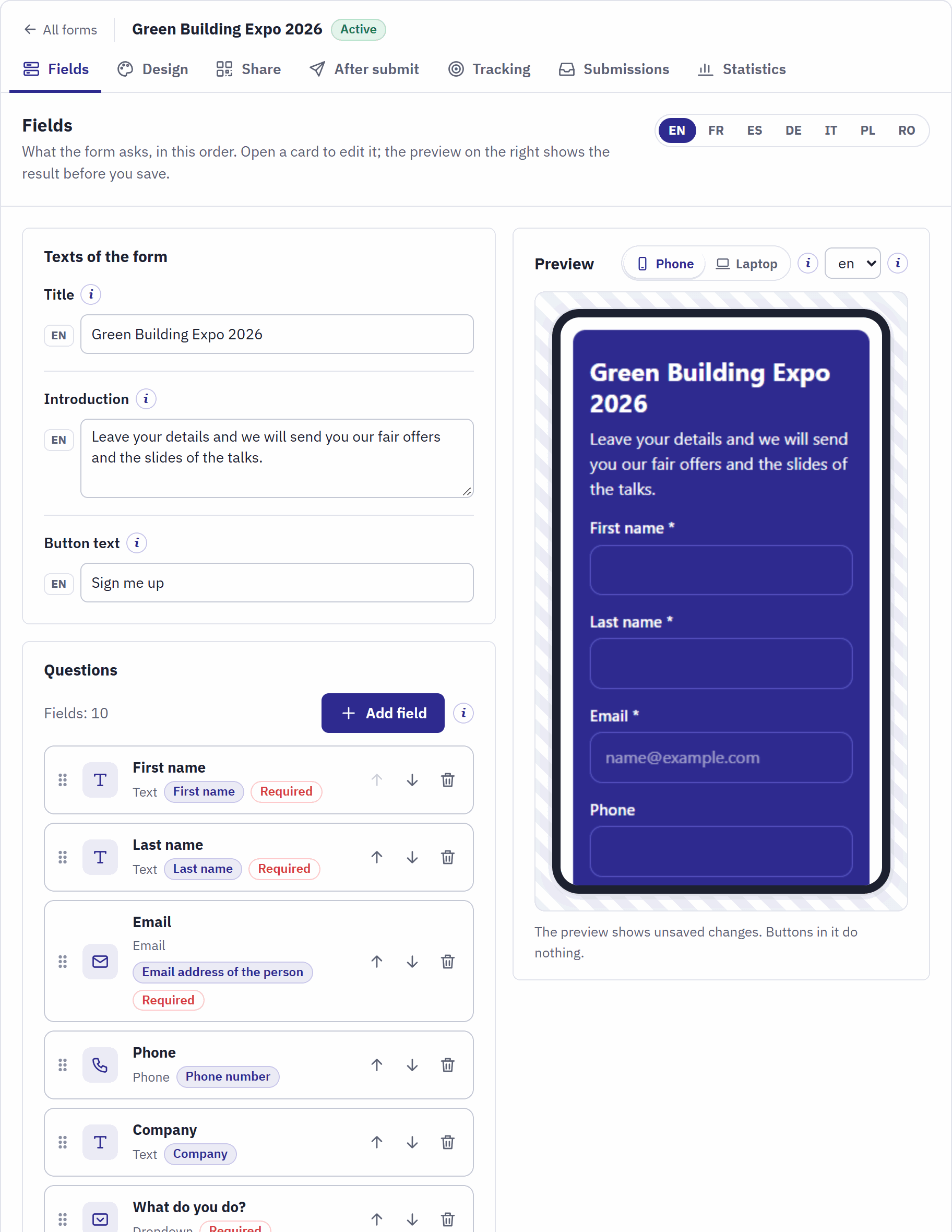
- All forms, the form’s name and state, and the pages of the form.
- The language tabs: the texts of the selected language are shown.
- Texts of the form: Title, Introduction and Button text.
- Add field opens the list of field types.
- A field card: the handle to drag it, its label and type, the badges (Required, its use), and the buttons to move it up or down or remove it. Click the card to open it.
- Phone or Laptop width, and the language of the preview.
- The preview, updated as you type. Its buttons do nothing.
The texts of the form
| Text | What it is |
|---|---|
| Title | The heading on top of the form, the poster and the confirmation email, and the name of the form in the back office. At most 255 characters. Name the event or the offer. |
| Introduction | A short text under the title that says why people should sign up: a call back, a catalogue, a prize draw. It may stay empty. |
| Button text | The text of the send button, at most 128 characters. It must be filled in for the default language of the shop. An action reads best, such as “Send me the offer”. |
A text left empty in another language uses the text of the default language, so a form works in every language from the start. Translate it with the language tabs whenever a link uses that language (Languages).
The field types
| Type | What the visitor gets | What the module checks |
|---|---|---|
| Text | One line: a name, a company, a city. | At most 255 characters. |
| An email field; phones show the keyboard with @. | A valid address, at most 255 characters. | |
| Phone | A phone number, with the phone keyboard on mobiles. | 6 to 20 digits; spaces and + - ( ) . are allowed. |
| Dropdown | One answer from your list of choices. | One of the choices. Each choice is counted in the statistics. |
| Long text | Several lines for a question or a message. | At most 5,000 characters. |
| Checkbox | A box to tick, with a sentence next to it: consent, newsletter, yes or no. | Ticked, when it is required. Yes and no are counted in the statistics. |
| Hidden value | Nothing: a value stored with every sign-up without being shown. | The value is set by the module, never by the visitor’s browser (Hidden values). |
The visitor’s browser checks the answers before sending, with the same messages as the shop, and the shop checks them again when it receives them. A wrong answer is shown in red under its field.
Add, order and remove fields
- Click Add field. The list of types opens, each with one line of explanation.
- Click a type. The new field is added at the end of the form, and its card opens.
- Fill in the Label (the question) and the other properties, described below.
- Drag the card by its handle to its place, or use the arrow buttons of the card (Move up, Move down; with the keyboard too).
- Click Save texts and fields. Until then, a note says You have unsaved changes.
The bin button of a card removes the field. The answers already stored keep it: a sign-up shows a removed field with the note Field removed since. A form can have up to 50 fields; every required field costs some sign-ups, so ask only what you need on the day and keep the rest for the call back.
The properties of a field
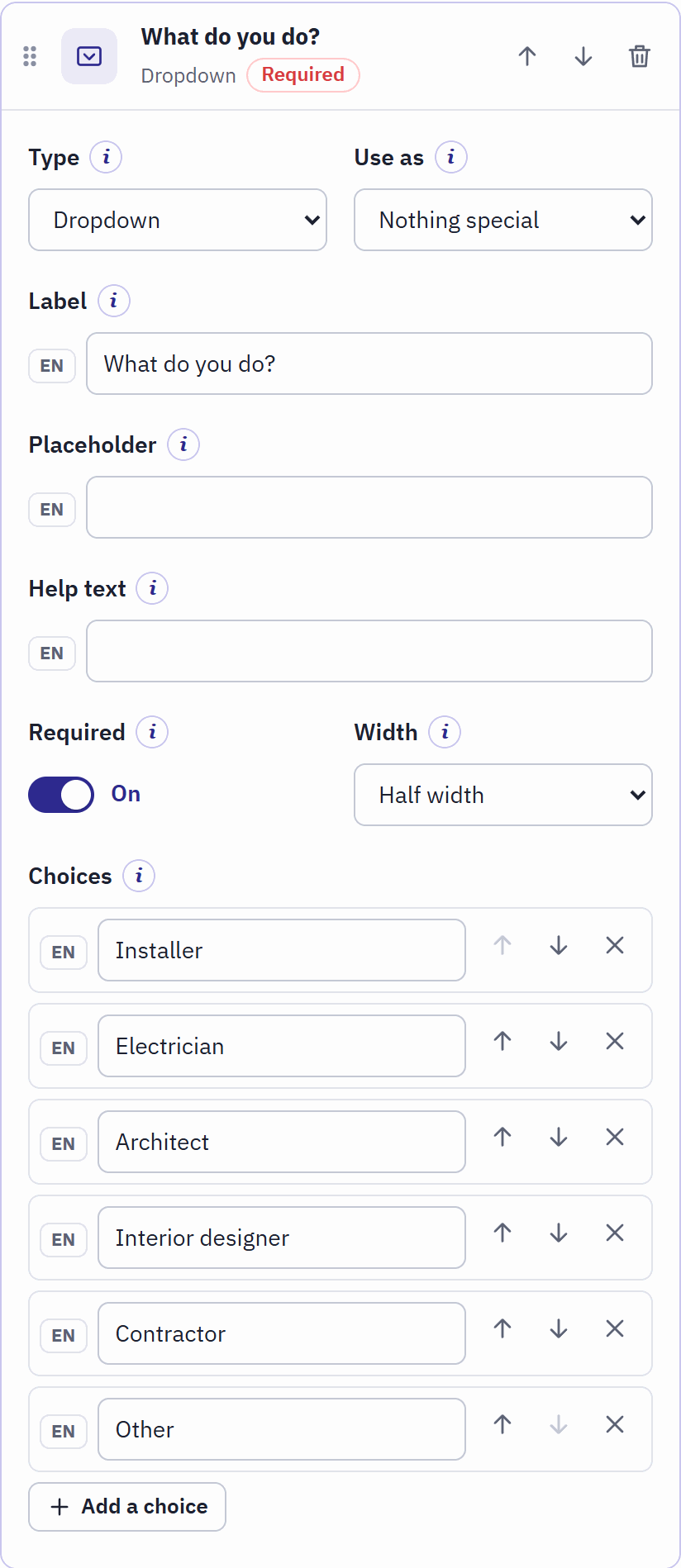
- Type.
- Use as: what the field means for the module.
- Label, one line per language of the shop.
- Required.
- Width.
- Choices, with buttons to move and remove each one, and Add a choice.
- Move up, Move down and Remove this field.
| Property | What it does |
|---|---|
| Type | The type you picked; you can change it later. |
| Use as | What the field means: see What a field is used as. Nothing special for most questions. |
| Label | The question above the field (or inside it, depending on the design). For a checkbox, the sentence next to the box. Required in the default language of the shop. |
| Placeholder | A grey example inside the empty field, such as name@example.com. It disappears while typing, so never put the question itself there. For a dropdown it is the first, empty choice (without one, the dropdown shows “Choose...”). |
| Help text | A small line under the field that explains what to enter, for example why you ask for the phone number. |
| Required | The form cannot be sent until the field is filled in or the box is ticked. A required field has a * after its label. |
| Width | Full width or Half width. Two half-width fields stand next to each other on wide screens, such as first and last name; on phones every field takes the full width. |
| Choices | Dropdown only: the answers, in the order shown, with one label per language. |
| Hidden value | Hidden value only: what is stored with each sign-up. |
What a field is used as
Use as tells the module which field holds the person’s email address, name or consent. The emails, the duplicate check and the options rely on it, so that the names of your questions never matter.
| Use as | On a field of type | What relies on it |
|---|---|---|
| Email address of the person | The confirmation email, the duplicate check, the newsletter, the customer account, the email search of the submissions. | |
| First name, Last name | Text | The customer account and the greeting of its email. |
| Phone number | Phone | The webhook, which sends it as the person’s phone. |
| Company | Text | The webhook, which sends it as the person’s company. |
| Privacy consent | Checkbox | The proof of consent: the sentence of the box and the time it was ticked are stored with each sign-up (Proof of consent). |
| Newsletter consent | Checkbox | The newsletter option, and the newsletter setting of a customer account the module creates. |
The rules, checked when you save, each with an explanation on the card concerned:
- Each use can be given to one field of the form only. To move it, set the other field to Nothing special first.
- A use must fit the field type, as in the table.
- A privacy consent checkbox is always required.
- The options of the After submit page need some uses: the confirmation email an email field; the newsletter an email field and a newsletter consent checkbox; the customer account an email field, a first name and a last name. Until the form has them, the option stays switched off with a note that names what is missing.
Dropdown choices
Click Add a choice for each answer, write its label in every language, and order the choices with their arrows. The statistics count how often each choice is picked (By answer). Renaming a choice keeps its counts; removing it hides it from new sign-ups only, and the statistics keep what it collected. A dropdown needs at least one choice.
A dropdown takes one answer. For a question with several possible answers, use one checkbox per answer: each box is counted with yes and no.
Hidden values
A hidden field is stored with every sign-up and exported with the others, without the visitor seeing it. Its value may hold three placeholders, replaced by the shop when the sign-up is stored:
| Placeholder | Becomes |
|---|---|
{source} | The name of the link that was used, such as “Stand B12 – poster QR”. |
{channel} | qr, kiosk, shortcode or embed. |
{lang} | The language code of the link, such as en. |
For example expo-{source} tags every sign-up for a later import into another program.
The preview
The preview on the right is drawn by the same code as the real form page, with your unsaved changes and the design of the form. Phone shows it as most visitors see it after scanning; Laptop shows it at the width of a laptop screen, scaled down to fit, as a kiosk or an embed in a wide column shows it. With several shop languages, the list next to it shows the form in another language: check every language that one of your links uses before you print its poster.
Design
The Design page gives the form its colours, corners and logo. They apply wherever the form appears: the page opened from a QR code, the kiosk, the shortcode block, the embed and the poster. Start from one of three styles, then adjust what you like.
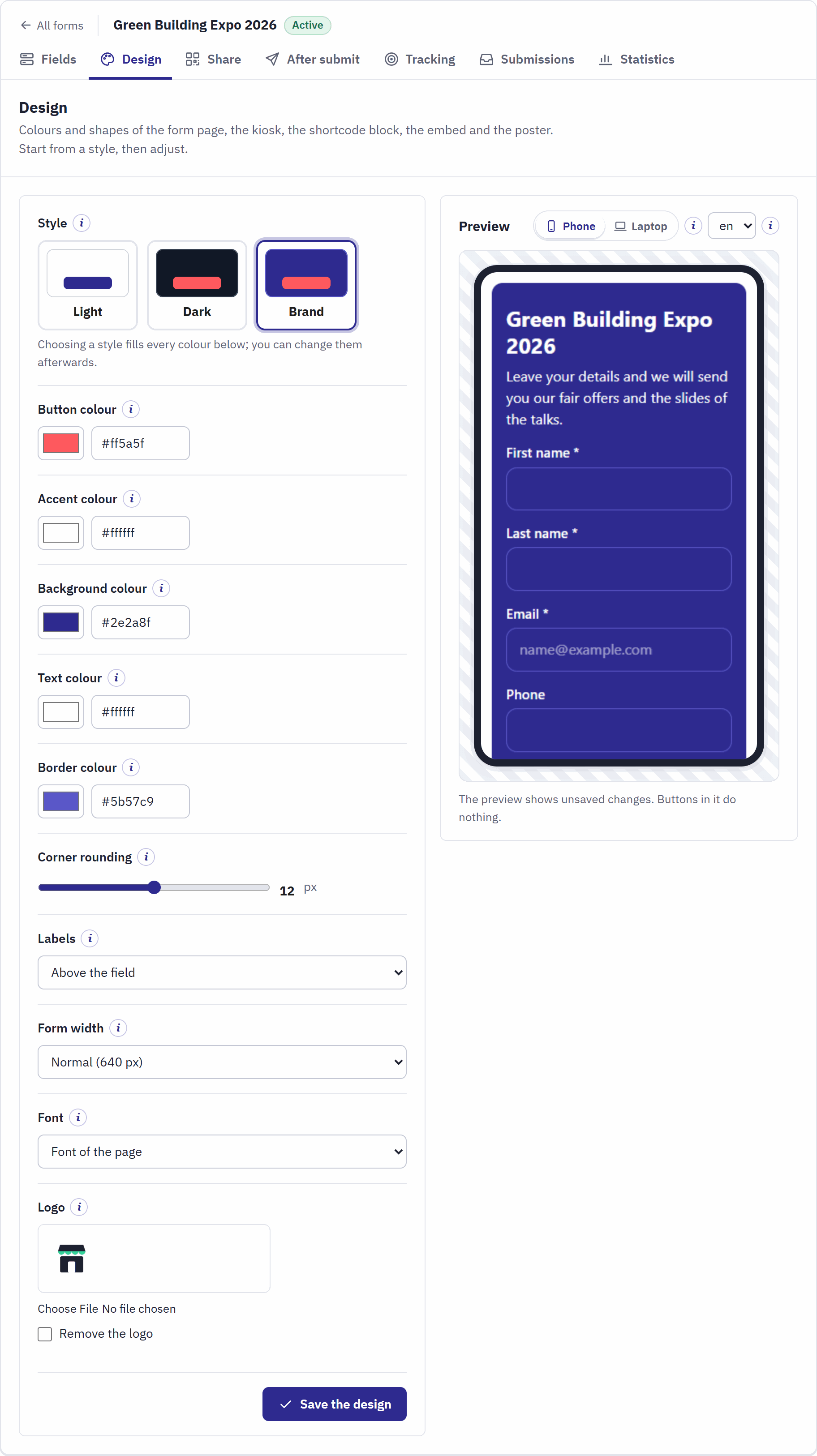
- Style: Light, Dark or Brand.
- The five colours, each with a colour picker and its colour code.
- Corner rounding.
- Labels, Form width and Font.
- Logo.
- The preview, with your unsaved changes.
The three styles
Choosing a style fills every colour and shape below it; you can change each value afterwards. A new form starts with Light.
| Style | Background | Button | Text | Corners |
|---|---|---|---|---|
| Light | white | indigo #2e2a8f | dark grey | 8 pixels |
| Dark | near black | coral #ff5a5f | near white | 8 pixels |
| Brand | indigo #2e2a8f | coral #ff5a5f | white | 12 pixels |
Colours and shapes
| Setting | What it changes |
|---|---|
| Button colour | The send button. The text on it turns white or black by itself, so that it stays readable. |
| Accent colour | The ring around the field being filled in, and the check mark of the thank-you message. |
| Background colour | The background behind the form. |
| Text colour | The title, the labels and the texts. Keep a strong contrast with the background: stands are often bright. |
| Border colour | The borders of the fields. Make it darker when the fields are hard to see. |
| Corner rounding | How round the corners of the fields and the button are, from 0 (square) to 24 pixels. |
| Labels | Above the field is the easiest to read. Inside the field shows the label in the empty field and moves it up while typing, which saves room on small screens. |
| Form width | The largest width on wide screens: Narrow (480 px), Normal (640 px) or Full width. Narrow suits a short form on a kiosk, full width an embed in a wide column. On a phone the form always takes the width of the screen. |
| Font | Font of the page takes the font of the page the form is shown in (your shop page for a shortcode). Font of the device uses the visitor’s own system font, which loads fastest. |
A colour code has # and six hexadecimal digits, such as #2e2a8f. You can type it, paste it, or pick the colour with the square next to it. A wrong code is refused when you save, with the colour it concerns.
Logo
Without a logo, the form page, the kiosk and the poster show the name of your shop on top. To show a logo instead:
- Under Logo, choose a PNG, JPG or WEBP file of at most 1 MB. A wide logo with a transparent background works best.
- Wait for the note that the logo is uploaded; the preview shows it.
- Click Save the design. The logo is kept only when you save.
To go back to the shop name, tick Remove the logo and save. On the form page the logo is a link back to your shop (not on the kiosk, which has no way out).
Where the design shows
- The form page opened from a QR code or a copied link, and the kiosk.
- The shortcode block in your shop pages and the embed on other websites. The block brings its own styles, so your theme does not change it, and it does not change your theme.
- The poster: title, logo and colours. The QR code is printed dark on white: in the button colour when it is dark enough to be scanned reliably, otherwise in another dark colour of the design or near black.
- The confirmation email, which uses the button colour as its accent.
Save with Save the design; the preview shows the changes before that.