











Install and first steps
You install Scan and Sign like any other PrestaShop module. A guided setup then takes you through your first form step by step: create it, add fields, choose colours and get the QR code. Before the event, a test on your own phone makes sure that everything arrives.
Before you install
| What | Supported |
|---|---|
| PrestaShop | 1.7.8 and later, 8.x and 9.x |
| PHP | 7.1 to 8.5. No image library (GD or Imagick) is needed: the QR codes are drawn as SVG. |
| Several shops | Yes: every form belongs to one shop (Several shops and languages). |
| Languages | The back office, the form pages and the emails are translated into English, French, Spanish, German, Italian, Polish and Romanian. Your forms can be written in every language of your shop. |
| Theme | Any theme. The form page uses no theme files; the shortcode block brings its own styles. |
| Emails | Confirmations and digests leave through your shop’s email settings (Advanced Parameters › E-mail). |
| Embeds on other websites | Your web server must allow the shop’s form pages to be shown in a frame (Embed on another website). |
Install the module
- Download the module’s zip file from your PrestaShop Addons account. Do not unzip it.
- In your back office, open Modules › Module Manager.
- Click Upload a module and select the zip file, or drop it into the window.
- When PrestaShop says that the module is installed, click Configure. The module’s page opens with the guided setup.
From now on you find the module in the menu at Customers › Scan and Sign. Configure in the Module Manager opens the same page.
The guided setup
The first time you open the module, the left column shows the Guided setup instead of the usual navigation: five steps, each one unlocked by the step before it. A step is ticked as soon as it is done, and the page of the next step opens.
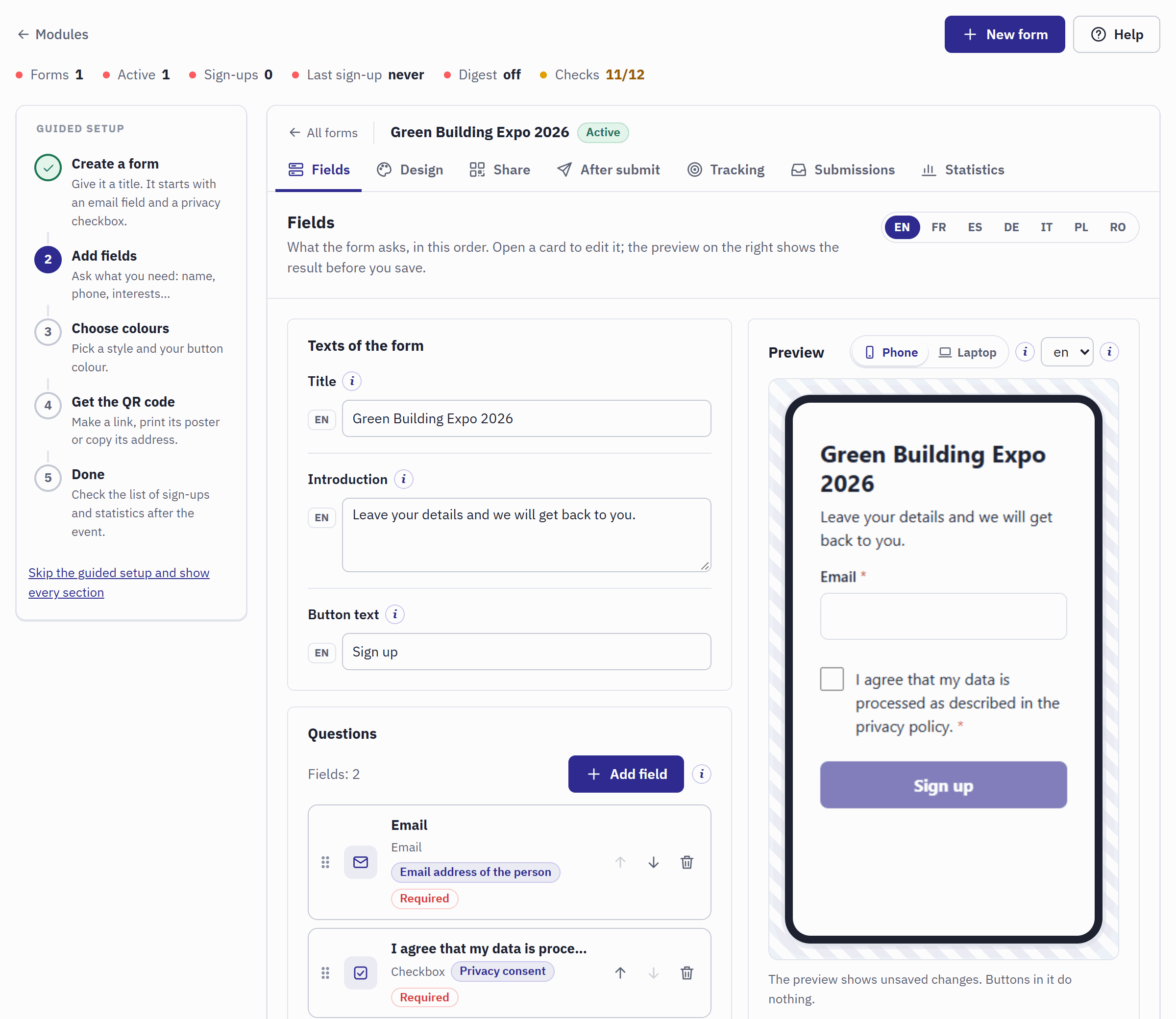
- The five steps. A ticked step is done; a grey one waits for the step before it.
- The current step, with a short hint of what to do.
- The page of the current step: you work there as you will later.
- Skip the guided setup and show every section leaves the track and shows the full navigation at once.
- Create a form. Give it a title, for example the name of your event, and click Create the form. The form starts with an email field and a privacy consent checkbox, and its texts are filled in for every language of your shop.
- Add fields. On the Fields page, add the questions you need, such as the name, the phone number or what the visitor is interested in, and click Save texts and fields (Build the form). The step is done when the form has a third field.
- Choose colours. On the Design page, pick one of the three styles, change the button colour if you like, and click Save the design (Design).
- Get the QR code. On the Share page, open New link, give the link a name such as “Stand – poster”, keep the channel QR code and click Create the link. Its QR code, poster and address appear at once (Share the form).
- Done. Click Finish the setup. The left column now shows every section.
If your shop already has forms with fields, a design and a link, for example after a reinstall, the setup sees it and finishes by itself. To show the steps again, for a colleague for instance, open Help › Documentation and click Start the guided setup again. Your forms are not changed.
Test the form before the event
A test takes two minutes and saves you a surprise on the day:
- On the Share page, print the poster or open it on screen, and scan the QR code with your phone. The form page opens.
- Fill in the form with your own email address and send it. The thank-you message appears.
- Open the form’s Submissions page: your sign-up is at the top, with the name of the link.
- If you switched on the confirmation email, check your inbox (The confirmation email).
- Tick your test sign-up and click Delete selected. The statistics keep counting it: to leave your tests out, choose the days of the event as the period of the statistics (The numbers and the days).
Upgrade, disable, reset or uninstall
| Action | What happens |
|---|---|
| Upload a newer version | Upload the new zip exactly like the first time. PrestaShop runs the upgrade. Your forms, links, sign-ups and statistics are kept, and the QR codes you printed keep working. With several shops and cron jobs, read Several shops first: since version 1.0.1 every shop has its own cron address. |
| Disable | The form pages, kiosks, shortcodes and embeds stop working, and the menu entry disappears. Everything stored is kept; enable the module to continue. |
| Reset | PrestaShop uninstalls the module and installs it again: every form, link, sign-up, statistic and logo is deleted. |
| Uninstall | Deletes every form, link, sign-up, statistic, setting and logo of Scan and Sign. |