











The back office
Everything of Scan and Sign is on one page: Customers › Scan and Sign. It opens on the list of your forms. This chapter explains how the page works, the list of forms and the checklist that tells you whether everything is ready.
How the page works
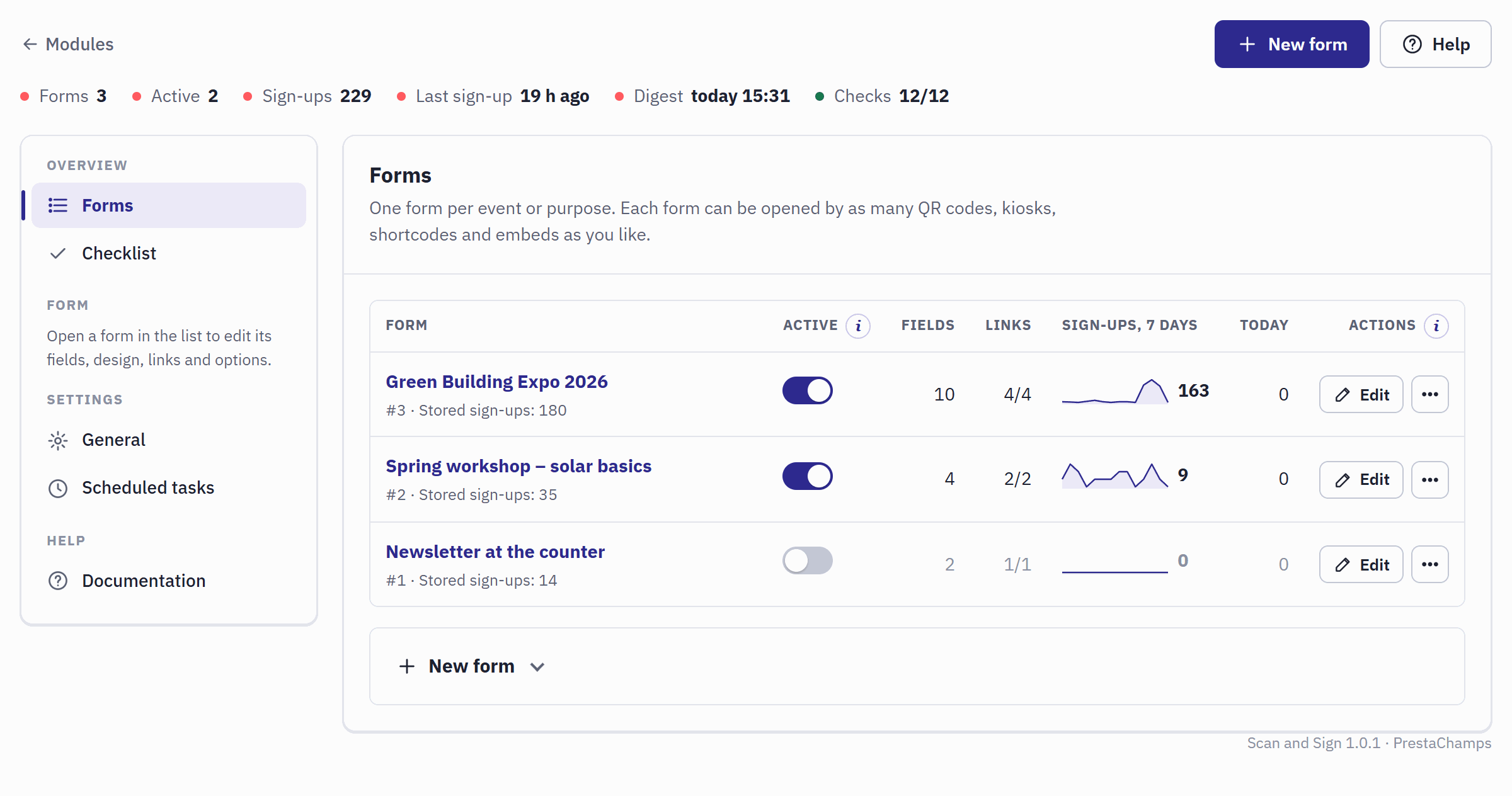
- New form and Help, on every page of the module. Modules, on the left, goes back to the Module Manager.
- The status line (see the table below).
- The navigation, in four groups.
- The name of the form opens it. Under it: its number and how many sign-ups are stored.
- Active switches the form on or off.
- Sign-ups, 7 days, with a small chart of the last 14 days.
- Edit opens the form’s fields; the button next to it opens the other actions.
- New form: the card that creates a form.
The status line sums up the shop (or the shops of your current selection):
| Item | What it shows |
|---|---|
| Forms | How many forms exist. |
| Active | How many of them are switched on. |
| Sign-ups | How many sign-ups are stored in all forms. |
| Last sign-up | How long ago the latest one arrived, for example “4 min ago”. |
| Digest | When the daily digest last ran, not run yet, or off when no form sends one. |
| Checks | How many checks of the checklist pass. Click it to open the Checklist. |
The navigation has four groups:
- Overview: Forms, the list you start from, and the Checklist.
- Form: the pages of the form you opened: Fields, Design, Share, After submit, Tracking, Submissions and Statistics. Until you open a form, this group only says how to open one.
- Settings: General and Scheduled tasks, for every form of the shop (Settings and scheduled tasks).
- Help: Documentation, a short reminder of how the module works.
Some rules hold on every page:
- One Save per card. Each card has its own button and stores only its own fields. The confirmation, or what is wrong with a value and how to put it right, appears inside the card.
- Help on every field. The small i next to a label opens a short text under the field: what it does, its Default: value and When to use it:.
- Language tabs. Cards with texts for the visitors have a button per shop language at the top right. The texts of the selected language are shown; the others are kept.
- Permissions. An employee whose profile may only view the page sees every page, but cannot save, and does not see secrets such as the cron address or the webhook secret.
The list of forms
| Column | What it shows |
|---|---|
| Form | The title of the form in your back-office language, its number and Stored sign-ups:. |
| Shop | Only when you look at several shops at once (Several shops and languages). |
| Active | The QR codes, kiosks and embeds of a switched-off form open a page that says that the form is not available, and its shortcodes show nothing. Its sign-ups and statistics are kept. Switch a form off after the event, so that old posters stop collecting sign-ups. |
| Fields | How many fields the form has. |
| Links | Active links of all links, for example 3/4. |
| Sign-ups, 7 days | The sign-ups of the last seven days, with a chart of the last 14 days. |
| Today | The sign-ups of today, in shop time. |
| Actions | Edit, and in the menu next to it Share, Submissions, Statistics, Duplicate and Delete. |
- Duplicate copies the form with its fields, texts, design and options, as the next event with the same questions. Links, sign-ups and statistics are not copied: the copy starts empty, active and without links.
- Delete deletes the form, its fields and links, all its sign-ups and all its statistics. You are asked to confirm, with the number of sign-ups that go with it. To keep the history, switch the form off instead; to keep the sign-ups, export them first.
Create a form
- Click New form at the top of the page, or open the New form card under the list.
- Enter a Title, for example “Green Building Expo 2026”. Without a title the form gets the module’s default title in each language (“Sign up” in English). With several shops, choose the Shop the form belongs to.
- Click Create the form. The form’s Fields page opens.
A new form is ready to use at once: it has an email field (required, used as the person’s email address), a privacy consent checkbox (required), a title, an introduction, a button text and a thank-you message in every language of the shop. You change all of it on its pages.
When a form is open, its name and state are shown on top of each of its pages, with All forms to go back to the list and a tab for each page of the form.
The checklist
Overview › Checklist looks at your shop each time you open it. Every line passes, warns or needs a fix, says why, and links to the page that fixes it.
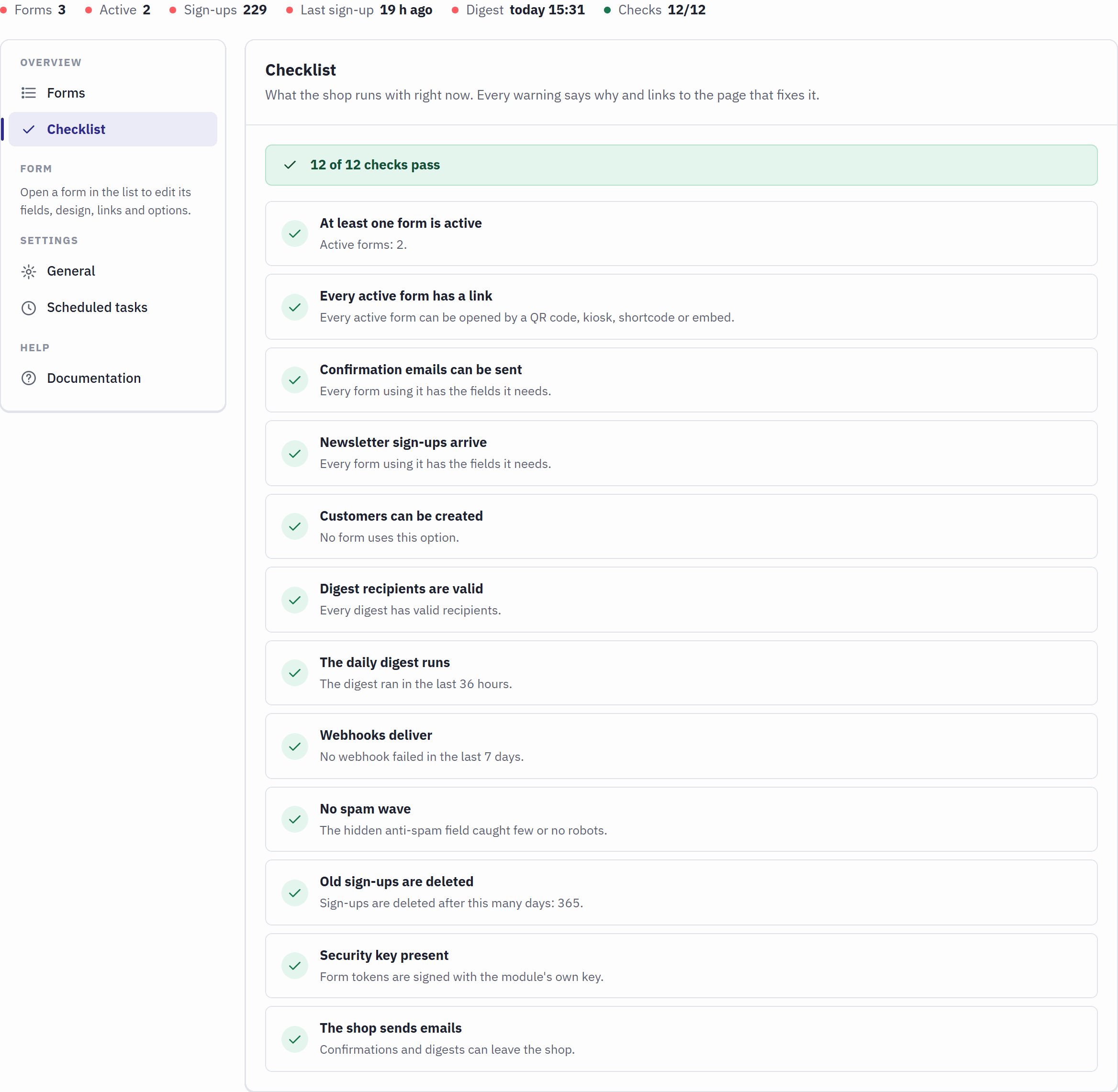
- Checks in the status line: the same count, on every page.
- The score: how many checks pass, and how many warn or need a fix.
- One check: what is tested, and the reason for its state.
| Check | When it is not green |
|---|---|
| At least one form is active | to fix No form is active: visitors have nothing to fill in. Create a form, or switch one on. |
| Every active form has a link | warning An active form has no active link yet, so nobody can open it. Make a link on its Share page. |
| Confirmation emails can be sent | to fix A form sends confirmations but has no field used as the email address. Add the fields. |
| Newsletter sign-ups arrive | to fix A form adds people to the newsletter without an email field or a newsletter consent checkbox. warning The newsletter module is missing or asks for a confirmation email: only existing customers are subscribed (Add to the newsletter). |
| Customers can be created | to fix A form creates customers but lacks a field used as email address, first name or last name. |
| Digest recipients are valid | to fix A form sends a daily digest without a valid recipient. Fix the recipients. |
| The daily digest runs | warning No digest ran in the last 36 hours. Digests leave when someone opens the back office; set up the cron address for a fixed time (Scheduled tasks). |
| Webhooks deliver | warning A webhook failed in the last seven days. Check the webhook and send a test (Webhook). |
| No spam wave | warning Robots filled the hidden anti-spam field of one link at least 25 times. Their sign-ups were not stored. If the number keeps rising, make a new link and delete this one. |
| Old sign-ups are deleted | warning Sign-ups are kept forever. Set a period in General (Old sign-ups are deleted). |
| Security key present | to fix The module’s own key is missing, so forms cannot be sent. Reset the module in the Module Manager (this deletes its data: export first). |
| The shop sends emails | warning Emails are switched off in Advanced Parameters › E-mail: no confirmation and no digest leaves the shop. |
| Scan and Sign is enabled in every shop that has active forms | to fix With several shops only: the module is not enabled in a shop that has active forms, so their QR codes and links lead to an error page. Open Module Manager, select the shop and enable Scan and Sign (Several shops). |
A check about an option that no form uses passes, with a reason such as “No form uses this option.”
Help and Documentation
Help at the top of the page opens Documentation: how the module works in five steps, the four channels, the shortcode, widget and embed codes, the privacy rules, what uninstalling deletes, Start the guided setup again, and the support address with your version number. Write to support with that version and what you did when something does not work as this guide says.